

When we shipped the KiCad plugin in May, we promised more of DeepPCB would follow. Today it does. Plugin v1.2.0 brings Cooper, our setup assistant, into KiCad as a panel docked next to your board. It reads the board, tells you what’s wrong with the setup, points at it on your canvas, and starts the route when you’re ready. You never leave the editor.
The first version of the plugin solved one problem: getting your board to the routing engine without a round trip through the browser. One click, and the routes come back into the project you already have open.
But a router can only work from what’s in the file. If ground is typed as a signal layer, it routes traces where you wanted a pour. If nobody marked USB D+ and D- as a pair, they route like any two nets. The router did its job. The setup was wrong.
That setup used to live in the web app. Now it lives in KiCad too.
Setup is where boards break
We’ve written about this before: autorouters don’t fail at routing, nobody configures them. Doing it properly takes about two hours on a real board. Layer types, net classes, pairs, widths, clearances. Most engineers do that arithmetic once and route by hand.
Cooper turns those two hours into a conversation. Until today, having that conversation meant uploading your board to app.deeppcb.ai. KiCad users told us the same thing they told us before the first plugin: I want this where I already work.
What Cooper does inside KiCad
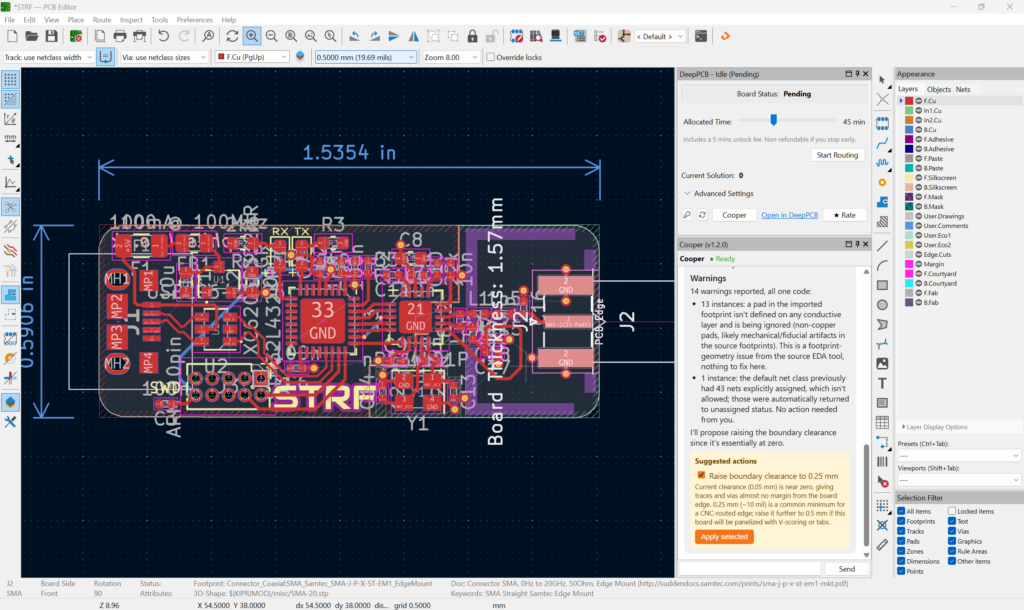
- It reads first, without being asked. Create a board and Cooper analyses it straight away: net classes, differential pairs, planes, clearances, track widths, the stack-up. You get a plain summary and suggested configuration actions before anything is routed.
- It proposes, you decide. Ask in plain language: type GND as a power layer, mark the USB nets as a pair, widen the 5V rail. Cooper suggests the changes and you accept or reject each one.
- It points at your board. Cooper acts on the board open in KiCad: it selects components, highlights or isolates nets, and toggles layers. Ask which nets make up the USB pair and it shows you, on your own canvas.
- It remembers. One conversation per board, restored across plugin reloads. Close KiCad, come back tomorrow, pick up where you left off. Closed the panel? The Cooper button in the status panel brings it back.
- It knows where it is. Cooper knows it’s talking to you from KiCad, not the web app, and guides you accordingly.
“Type GND and +3V3 as power, fix the USB diff pair, and route it.”
That’s the whole workflow.
A cleaner flow around it
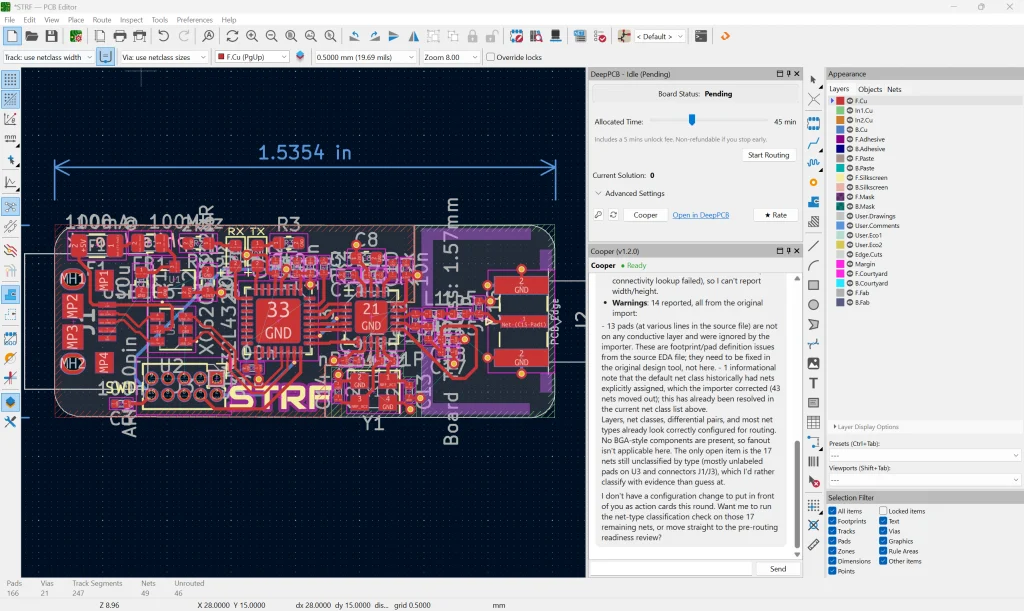
Bringing Cooper in meant rethinking the rest of the panel, so v1.2.0 tidies up the flow too.
- Create DeepPCB Board. Board creation is now a single dialog: name the board, attach your schematics, upload. That’s what Cooper reads.
- Start Routing from the status panel. Set the allocated time on the slider, press Start Routing. Nothing runs until you do.
- No overwrites behind your back. New solutions load automatically only while a job is running or right after you ask Cooper for something. Otherwise the plugin offers the new solution and lets you decide. Old solutions never load unasked, and a revision you pick from the Solutions list stays picked when you refresh.
What lands back in KiCad
When the run finishes, the routed revision comes back into your open project as a single entry in KiCad’s undo stack. Inspect every net. Keep what you like. One undo and your board is back to how it was.
Some of Cooper’s settings are DeepPCB-specific, like decoupling-capacitor rules or net preferences. The engine uses them during the run, but KiCad has nowhere to show them.
Getting started
If you already have the plugin, update to v1.2.0. If not, it takes two minutes and no Java:
- Download DeepPCB KiCad plugin v1.2.0 and install it from the release file.
- Add your API key from app.deeppcb.ai/integration.
- Open your board, create it with Create DeepPCB Board, and read what Cooper found in the panel docked next to the status panel.
What stays with you
Cooper sets up the board; the engine routes it. For length-matched, DDR or dense BGA nets, route those in KiCad first and DeepPCB finishes the rest. The call at sign-off is always yours.
- Routes signal nets to your net classes, diff pairs, blind and buried vias, with multi-plane support.
- Not modelled: length matching and skew, crosstalk, DDR, complicated BGA fanout. Route those in your tools.
- Ceiling: the public service is capped to 1,200 airwires and 8 layers. The free tier covers 30 minutes, 4 layers and 150 airwires.
- Yours: placement, and the call at sign-off.
And yes, your board goes to the cloud. The plugin sends it to api.deeppcb.ai and your designs stay private. The plugin is Apache-2.0 and the upload code is public.
Try it on your board
Update the plugin. Open a board you were about to route by hand. Ask Cooper what it sees.
If its read doesn’t impress you, you lost a coffee. If it does, you just got your afternoon back. Want proof across more boards first? Check out our benchmarks at deeppcb.ai/benchmarks.

